Share your experience of computers and laptops
Tell us what computer you use, how old it is and when you plan to replace it. Your answers are combined with other people's and reported only as totals.
Start the computers and laptops surveyAbout 5 minutes. No account needed. You can stop at any time.
What this topic covers
This topic covers personal computers used at home, for school and for work done from home:
- Laptops, the most common kind, from light thin models to heavier machines for gaming or design.
- Desktop computers, including towers and all-in-one computers with the screen built in.
- Tablets with keyboards, which some people use instead of a laptop.
- Chromebooks and other low-cost laptops that rely mostly on web apps.
It also covers the decisions around them: which operating system to use, how much to spend, where to buy, and when to replace or repair. Phones are covered separately on the smartphones and mobile apps page.
What people use computers for
People who have a phone often keep a computer for tasks that are easier on a larger screen with a keyboard:
- paid work and working from home;
- school assignments and online courses;
- household paperwork, such as taxes, forms and budgets;
- photo and video editing;
- gaming;
- writing, design and other creative work;
- video calls with family.
How a person uses a computer affects what they need. Someone who mostly browses the web and writes email can use a modest machine. Someone who edits video or plays recent games needs much more processing power and a better graphics chip.
How people choose a computer
Most buyers start with a budget and an operating system. The three main desktop operating systems are each tied to particular hardware or software, and people often stay with what they know, what their workplace uses, or what their school requires.
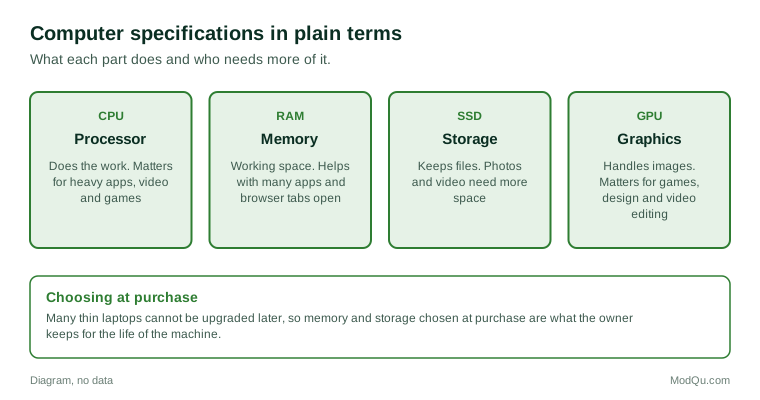
After that, the specifications matter. In plain terms:
- Processor (CPU): the main chip that does the work. Newer and higher-tier processors are faster.
- Memory (RAM): short-term working space. More memory helps when many apps or browser tabs are open.
- Storage: where files are kept. Solid-state drives (SSDs) are much faster than older hard disk drives.
- Graphics (GPU): handles images, video and games.
- Screen: size, sharpness and brightness.
- Battery life, for laptops.
- Weight and build, for people who carry a laptop every day.
Many buyers find specifications confusing and rely on reviews, salespeople, or a friend or relative who knows about computers.
Example
A first-year university student needs a laptop for writing papers and joining online lectures. A relative suggests a powerful gaming laptop on sale. The student chooses a lighter model with a longer battery life instead, because they will carry it between classes all day and do not play games.
Where and how people buy
Computers are bought from large electronics retailers, warehouse clubs, the makers' own websites, online marketplaces and campus stores. Common buying patterns include:
- waiting for seasonal sales, such as back-to-school and late-November sales;
- buying refurbished or open-box models to save money;
- buying through an employer or school program at a discount;
- adding an extended warranty, which some buyers value and others avoid.
Example (hypothetical figures)
A buyer compares a new laptop at $1,000 with the same model refurbished at $750. The refurbished one has a one-year warranty instead of two. They buy the refurbished laptop and put $100 of the $250 saved toward a second year of warranty from the seller, leaving them $150 ahead.
How long computers last
A laptop or desktop can work for many years, but people replace computers for several reasons:
- it has become too slow for the apps and websites they use;
- the battery no longer holds a charge;
- it no longer receives operating system or security updates;
- a part breaks, such as the screen, keyboard or hinge;
- a new job, school program or hobby needs more power;
- they simply want something newer.
Desktop computers can often be upgraded by adding memory or storage, or by replacing the graphics card. Many thin laptops have memory and storage soldered in place, so they cannot be upgraded later, which makes the first choice more important.
Example
A family's eight-year-old desktop becomes very slow. A neighbour who builds computers replaces its old hard disk with a solid-state drive and adds memory. The computer starts in under a minute instead of five, and the family puts off buying a new one for two more years.
Disposal and recycling
Old computers contain metals that can be recovered and materials that should not go into regular garbage. Most Canadian provinces run electronics recycling programs, often paid for by a fee on new purchases. Before recycling, selling or giving away a computer, owners are usually advised to back up their files and erase the drive. Many people keep old computers in a closet for years because they are unsure how to wipe them safely.
Problems people run into
Common frustrations reported by computer owners include:
- slow performance as the machine ages;
- unwanted software that comes preinstalled;
- updates that restart the computer at awkward times;
- moving files and settings from an old computer to a new one;
- viruses and other malware;
- getting repairs done quickly while under warranty.
Many households also share one computer between several people, which raises questions about separate accounts, parental controls and who keeps it updated.
Work computers and home computers
The rise of working from home has blurred the line between work and personal computers. Some employers provide a laptop and ask staff not to use it for personal tasks; others expect employees to use their own. Each approach raises questions:
- who pays for the computer, and for repairs when it breaks;
- whether the employer's security software can see personal files;
- whether family members may use the work laptop;
- what happens to the computer and its data when someone leaves the job.
Example
A call centre worker who now works from home is given a company laptop. Their teenager asks to use it for homework when the family computer is busy. The worker checks the company's policy, which forbids it, and the family buys a low-cost laptop for school use instead.
What people disagree about
Opinion is divided on whether laptops should be easier to repair and upgrade, whether a tablet can replace a laptop, whether extended warranties are worth it, and whether it is better to buy a cheaper computer more often or a more expensive one less often. Surveys help show how these preferences differ by age, work and budget.
Key terms
- CPUThe processor, the main chip that does a computer's work.
- RAMMemory used as short-term working space while apps are open.
- SSDA solid-state drive, fast storage with no moving parts.
- GPUThe graphics processor, which handles images, video and games.
- Operating systemThe main software that runs the computer and its apps.
- RefurbishedA used or returned device that has been checked and repaired for resale.
- Extended warrantyPaid coverage for repairs after the maker's warranty ends.
- PeripheralA device connected to a computer, such as a mouse, printer or monitor.
Full glossary: computer hardware manufacturing terms on EditingTests.com.
Computers and laptops vocabulary test
How well do you know the language of this topic? Try 8 quick questions. Your score is shown straight away and is not saved.
What the computers and laptops survey asks
This survey is part of ModQu's Technology at Home survey. The computers and laptops part takes about five minutes and covers:
- What kind of computer you use most, and its brand and operating system.
- How old it is and how satisfied you are with it.
- What you use it for, at work, at school and at home.
- How you chose it, and where you bought it.
- When you plan to replace it, and what would make you do so.
- What you did with your last computer.
After that you can choose to continue with other short parts of the Technology at Home survey, such as smartphones and mobile apps or internet and mobile plans, or stop.
Ready to take part?
Your answers help show what people really think and do. Results are only ever reported as totals; no one can see your individual answers.
Start the surveyQuestions about this survey
Who can take part?
Adults who own a computer.
Do I have to give my name?
No. You may be asked for your age group, region and similar details so results can be broken down, but not your name. ModQu never asks for passwords, card numbers or account numbers.
How are the results used?
Answers are combined into totals and percentages and published in ModQu reports. Individual answers are never shown.
Is the vocabulary test part of the survey?
No. It is optional and separate, and your score is not stored.